Sony | Sound Connect
- 4.4
- Rating
- 10.00M
- Installs
- Free
- Price

 Analysis by App-foxy
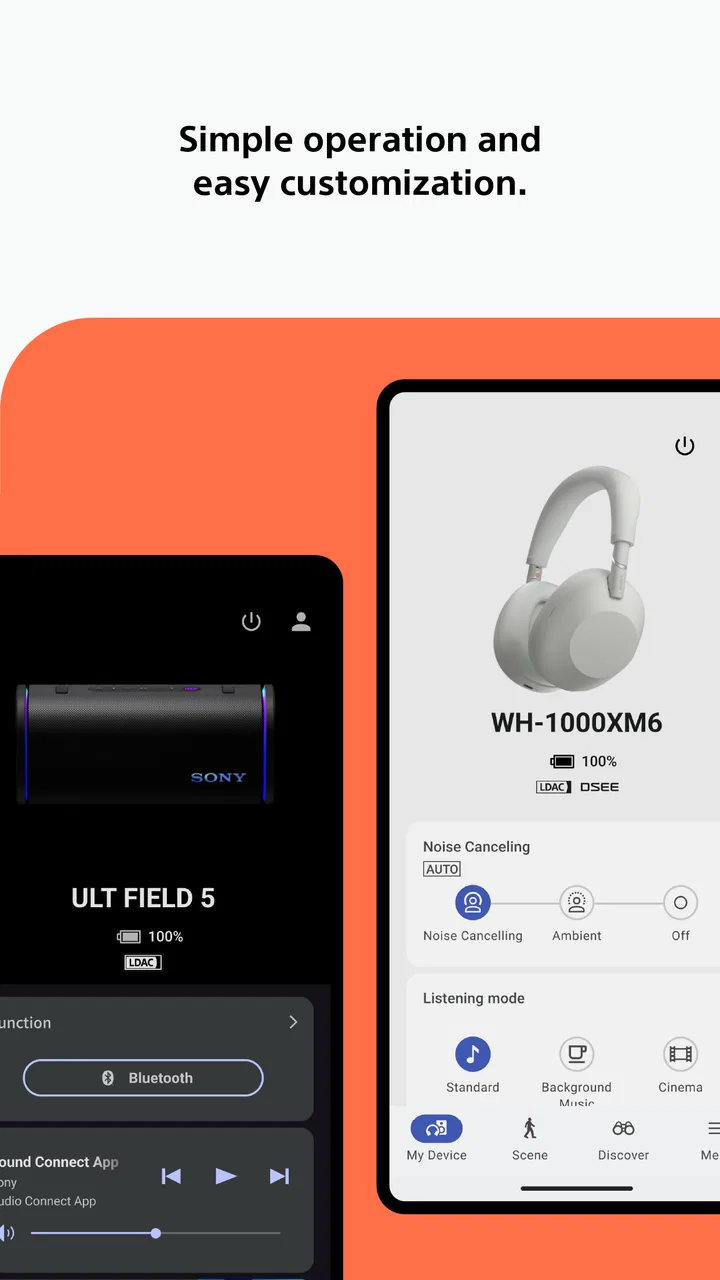
I spent time with Sony | Sound Connect as a companion for compatible Sony audio products, and my overall impression is that it works best when you treat it as a control center rather than a music player. The app belongs in the Tools category, is free to use, and comes from Sony Corporation. Its purpose is simple: help you adjust and personalize the way supported headphones and other Sony audio devices behave during everyday listening.
That distinction matters. If you only want to press play, your phone’s usual music app is still the more direct choice. Sound Connect becomes useful when you want to tune the listening experience, check device-related options, or build a repeatable setup for different situations. I found it most valuable after pairing a compatible product and taking a little time to move beyond the default settings.
The app has been available since February 28, 2017, and its scale suggests that it has become a familiar companion for Sony users: it has passed ten million installs and holds a 4.4 average from around 405 thousand ratings. It is rated for Everyone, so the interface is approachable, although the number of options can still feel more technical than a basic Bluetooth settings screen.
You May Also Like

 Blood Strike: 2.5 Anniversary
Blood Strike’s Loadouts Turn Every Drop Into a Tactical Gamble
A close look at Blood Strike’s custom loadouts: how fast access to signature weapons reshapes its battle royale rhythm, rewards preparation, and narrows the gap between fights.

 Pandora - Music & Podcasts
Pandora’s Music Is Easy to Start, but Harder to Recover
Pandora’s strength is its low-effort path from a seed to a station. Its weak spot is how much confidence it asks you to place in connection, setup, and quiet recovery.

 8 Ball Pool
 Is Built on Rivalries, Rematches, and Routine
A close look at the rivalries, rematches, shared routines, and unanswered safety questions that turn a quick pool match into a persistent mobile community.

 Samsung Music
’s Quiet Strength Is Playing What You Already Own
Its reach comes less from spectacle than from dependable access to a personal library. That simplicity is both the app’s strongest retention engine and its ceiling.

 AccuWeather: Weather Radar
AccuWeather Review: A Quick, Clear Forecast for Everyday Decisions
For everyday plans, the best forecast is the one you can understand quickly. AccuWeather makes rain timing, radar, and local conditions easy to act on, with a few trade-offs.

 Hill Climb Racing
Why Hill Climb Racing Still Turns Crashes Into One More Run
A tiny car, a bumpy hill and one more upgrade: Hill Climb Racing keeps resurfacing because its simple chaos makes every near-miss feel personal.
More From Our News Desk



How I built a reliable everyday workflow
I rely on a small, repeatable routine rather than reopening Sound Connect whenever the sound changes: check which Sony device is connected, adjust one relevant setting, then listen to a familiar passage before keeping the change. That gives me a dependable baseline and makes it easier to tell whether a tweak helps or merely sounds different. From there, it’s worth looking at which settings are most useful to check first.
Start with the device, not the app
My first recommendation is to connect the Sony audio product before trying to understand every screen. Sound Connect makes more sense when it has a supported device to manage. Once the connection is established, I use the app as a place to inspect the current setup, make one change at a time, and then listen for the result instead of changing several controls at once.
This sounds obvious, but it prevents a common mistake: opening the app, adjusting an equalizer, changing a sound mode, and then forgetting which setting actually made the difference. I prefer a baseline workflow. I begin with the default sound, play a familiar track, adjust one area, and return to the same track. That gives me a useful reference instead of relying on memory.
The app is especially convenient for people who use headphones in several environments. I can prepare a comfortable sound profile for commuting, another for quiet listening, and a simpler setup for calls or podcasts. The exact choices depend on the connected Sony product, so I would not assume that every model exposes the same controls. The important habit is to make changes deliberately and remember what each one is meant to solve.
Use listening situations as your organizing system
I get better results when I organize settings around situations rather than chasing a supposedly perfect sound. A bass-heavy adjustment may be enjoyable for electronic music but tiring for spoken audio. A more open or balanced presentation may suit an evening album, while a stronger focus on voices can make a podcast easier to follow in a noisy place.
Sound Connect is therefore more useful when you already know your listening habits. I would not install it expecting the app to decide what sounds best for you. Instead, I use it to shorten the distance between a problem and a practical adjustment. If voices are getting lost, I look for a sound change that improves clarity. If music feels thin, I try a modest tonal adjustment rather than immediately pushing every control to an extreme.
A realistic example is a workday commute. Before leaving, I can check the device connection and select the setup I prefer for music. When I switch to a spoken program, I make a smaller adjustment rather than accepting the same sound for everything. Later, at home, I return to a calmer setting for longer listening. The benefit is not that the app removes every decision; it makes those decisions easier to repeat.
Keep the phone’s audio controls in their proper place
One useful mental separation is to distinguish phone-level controls from device-level controls. The phone handles playback through services such as a music or podcast app, while Sound Connect handles personalization for the compatible Sony hardware. If a song will not play, the Sony app is usually not the first place I would investigate. If the headphones connect but sound or behavior is not right, Sound Connect becomes much more relevant.
This separation also helps when troubleshooting. I check whether the audio is routed to the intended device, then check the Sony app for the connected product and its available settings. I avoid changing several phone and headphone controls at the same time because that makes the cause of a problem harder to identify.
What I check before relying on it
Before an important call, trip, or long listening session, I like to open the app briefly and confirm that the expected Sony product is the one being managed. I also listen for a few seconds after making a change. A setting that sounds good in a quiet room may not be comfortable outdoors, and a control that helps music may not help speech.
This small check is more valuable than constantly opening the app. Sound Connect is not something I need to watch while listening. Once my preferred configuration is in place, I leave it alone and only return when my situation changes or I want to refine the setup.
Settings worth checking first
The most worthwhile area for many users is the sound personalization section, especially any equalizer or related audio adjustment offered for the connected product. I recommend starting with small changes. A gentle lift in one range can be enough to make a familiar recording more enjoyable, while a dramatic adjustment may make several other tracks sound unnatural.
I also check any available controls connected with the way the headphones respond to the surrounding environment. The usefulness of these options depends heavily on where I am. A setting that feels helpful on a train may be unnecessary in a quiet room. I treat these controls as situational tools, not permanent badges of a “best” configuration.
Another practical check is the control layout. If the connected product supports customizable touch or button actions through the app, I think about the actions I actually use. A shortcut is only helpful when it is easy to remember and unlikely to be triggered accidentally. I prefer a small number of familiar actions over a complicated arrangement that I have to relearn.
The available menu can differ by product, so I would not expect the same experience from every Sony model. That is one of the app’s strengths and weaknesses at the same time: it can expose useful device-specific controls, but the interface is not a universal audio laboratory with identical options for everyone.
Make one profile serve one purpose
I find it tempting to build a setting that tries to handle music, calls, audiobooks, and noisy travel equally well. In practice, that usually produces a compromise I do not love. A better approach is to decide what matters most in each situation. For music, I may care about tonal balance. For speech, intelligibility matters more. For commuting, I may prioritize awareness and comfort.
This is one of the less obvious advantages of using a companion app: it encourages me to think about the device as something configurable rather than fixed. The trade-off is that personalization takes time. Someone who never wants to adjust audio may see this as unnecessary work, while someone who owns compatible Sony equipment may appreciate having those choices in one place.
Do not confuse more controls with better sound
My strongest setting-related advice is to stop adjusting when the problem is solved. More bass is not automatically more detail, and more environmental processing is not automatically more comfortable. Long listening sessions reveal flaws that a short test can hide, so I judge a change after using it for ordinary tasks rather than only during a quick comparison.
I also keep a neutral fallback in mind. If I have experimented heavily and the sound becomes confusing, returning to a simpler setup gives me a clean reference. That makes future adjustments easier and prevents the app from becoming a collection of unexplained changes.
Faster patterns for regular users
Experienced use of Sound Connect is less about opening it constantly and more about creating habits around it. I use the app when I have a clear reason: preparing a device, correcting an uncomfortable sound, checking a control arrangement, or adapting to a new environment. Then I close it and listen.
One efficient pattern is the “before and after” check. I listen to a short, familiar section, make one adjustment, and replay that section. If I cannot identify a meaningful improvement, I undo the change. This prevents endless tweaking and keeps the final setup connected to something I can actually hear.
A second pattern is to adjust before a context change rather than during it. If I know I am going from a quiet room to a busy street, I make the change before leaving. That is faster and safer than trying to navigate settings while walking. It also gives me a chance to confirm that the new setup is comfortable.
A third pattern is to keep physical controls and app controls conceptually separate. I use the headphones’ immediate controls for actions I need often, such as playback or volume when supported. I reserve the app for deeper personalization. This division reduces friction because I am not reaching for the phone every time I want a basic action.
When I lend or share a device, I also remember that my preferred configuration may not suit another listener. A quick return to a neutral or familiar setup can avoid confusion. This is particularly useful when someone thinks the headphones sound “wrong” simply because my personal adjustment is active.
Where the app saves time—and where it does not
Sound Connect saves time when the same Sony device needs different treatment across the day. It is less helpful when the real issue is a weak Bluetooth connection, a problem inside the playback service, or a hardware fault. In those cases, repeatedly changing sound settings will not solve the underlying problem.
I also would not choose it as my main music library or streaming tool. The app’s role is device personalization, not replacing the music apps I already use. That focused role is a benefit because the controls are tied to Sony hardware, but it means users looking for an all-in-one audio player should look elsewhere.
Advanced limits you should understand
The biggest limitation is compatibility. The app’s value depends on owning a supported Sony audio product, and the controls presented can vary between models. I would check the compatibility of my specific headphones or speaker before building expectations around a particular option. Installing the app alone does not turn every Bluetooth accessory into a fully configurable Sony device.
Another limitation is that personalization cannot overcome the physical character of the hardware. Software adjustments can shape the experience, but they cannot transform one product into another. If a headphone’s fit, comfort, microphone behavior, or basic sound signature does not suit me, I would not expect the app to fix everything.
There is also a learning curve. The app is approachable enough for casual users, but people who open every available setting at once may feel overwhelmed. I prefer to explore gradually, because each control has more meaning when I understand the situation it is intended to improve.
Advanced users should also be realistic about consistency. A setting that works for one recording may not work for another, and a profile that feels excellent in a quiet room may be less useful outside. I see the app as a way to manage trade-offs, not eliminate them. That is an important distinction if you are expecting a single configuration to be ideal everywhere.
Who should use it, and who can skip it?
I would recommend Sound Connect to people who own compatible Sony audio hardware and care about adjusting more than volume and playback. It is particularly suitable for listeners who move between music, speech, travel, work, and relaxation, because those situations often benefit from different choices.
It is also a good fit for someone who enjoys gradual experimentation. You do not need specialist audio knowledge to start, but curiosity helps. The most satisfying results come from listening carefully, changing one thing, and keeping only adjustments that improve a real part of your day.
I would skip it if I do not use compatible Sony equipment, if I never want to personalize sound, or if I am searching for a music streaming service. A phone’s standard Bluetooth panel may be enough for a listener who only needs to connect and play. Likewise, people who want deep manual control across many brands may prefer a broader audio utility, accepting that it may not offer the same device-specific integration.
My verdict after using it as a daily companion
Sony | Sound Connect is most convincing when I use it with a clear routine: establish a baseline, adjust settings for a real situation, test the result, and leave the configuration alone until my needs change. It does not make every Sony audio product identical, and it is not intended to replace a music player. Its strength is the practical layer between the hardware and the listener.
The free price makes it easy to try, and the Everyone age rating keeps the entry barrier low. Sony’s long-running app has attracted over ten million installs, while its 4.4 average from around 405 thousand ratings indicates broad approval. Those figures do not replace personal testing, but they match my experience that the app is useful once a compatible device is connected and the user is willing to explore it sensibly.
My final recommendation is simple: install it if you own supported Sony headphones or another compatible Sony audio product and want more control than the phone’s basic Bluetooth menu provides. Start with the settings that address an actual problem, keep your changes modest, and build habits around situations rather than chasing a permanent perfect sound. Its real value is repeatable personalization, not endless tweaking.
FAQs for Sony | Sound Connect
01What is Sony | Sound Connect used for?
Sony | Sound Connect is the companion app for compatible Sony wireless headphones, earbuds, and other audio devices. After pairing your product, it lets you adjust sound settings, manage noise cancellation and ambient sound, configure touch or button controls, install firmware updates, and access device information. The exact features available depend on the Sony model connected to your phone.
02Which Sony headphones and earbuds are compatible with Sony | Sound Connect?
Compatibility depends on the specific Sony audio product and its firmware. The app supports many recent models from ranges such as WH and WF, but not every Sony Bluetooth device includes the same controls or works with the application. Before downloading, check the app listing or Sony’s official compatibility page for your exact model, because older products may have limited support or require another Sony companion app.
03Can I use Sony | Sound Connect without creating a Sony account?
Basic functions, such as connecting a supported device and changing many listening settings, may be available without signing in. However, Sony can request an account for certain features, personalized services, product registration, or cloud-related options. Account requirements may also change with app updates and region. If you prefer not to register, you should still be able to use the core controls supported by your headphones.
04Does Sony | Sound Connect improve sound quality or battery life?
The app does not physically upgrade the headphones, but it gives you tools to tune their performance. Depending on the model, you can use an equalizer, presets, adaptive sound controls, noise-cancellation settings, and a connection-quality option. These adjustments can make listening more comfortable, while features such as noise cancellation, multipoint Bluetooth, and higher-quality codecs may affect battery consumption.
05Why can’t Sony | Sound Connect find or connect to my headphones?
First, make sure your headphones are switched on, sufficiently charged, and close to the phone. Bluetooth should be enabled, and the product may need to be placed in pairing mode. If it was connected to another device, disconnect it there before trying again. Restarting Bluetooth, reopening the app, updating the app and headphone firmware, or removing the old Bluetooth pairing can also resolve connection problems.
Pros
- Clear control over EQ
- noise cancellation
- and ambient sound settings.
- Supports firmware updates to keep compatible Sony headphones current.
- Lets users save and switch between personalized sound profiles quickly.
- Useful battery status information for connected headphones and earbuds.
- Headphone connection and setup are generally simple for Sony device owners.
Cons
- Many features work only with supported Sony headphones and earbuds.
- Some advanced options can feel confusing for first-time users.
- The app may request frequent permissions for Bluetooth and nearby devices.
- Settings can vary noticeably between different Sony headphone models.
- Background operation may use extra battery on some Android phones.

Sony | Sound Connect
Gallery